
Common Features
The Sentinel Pulse interface displays the following information and features across all the dashboards.
>Account Name and Product Name Filters
Account Name and Product Name Filters
There are filters available on each screen of the Sentinel Pulse app, including Home Page and Accounts Page. However, the fields and values may be different based on the screen you are at.
When you add filter criteria, you need to specify:
>The operator
>The filter value
Filter Operators
| Operators | Description |
|---|---|
| Equals | Returns an exact match. |
| Does Not Equal | Returns records that do not have the value you specify. |
| Contains | Returns records that include your search string but may also include other information. For example, “california” might return California Travel and Surf California. |
| Is Null | Returns records if an expression is null (blank). |
| Is Not Null | Returns records if an expression contains a value |
To filter the data:
1.Select Product Name or Account Name.
2.Select an operator.
3.Enter a value to match the criteria.
For example, in Account Name, select the filter operator as Contains and type point as illustrated in the following image.
NOTE These filters work as AND not OR, so you must ensure that you are applying the required filters.
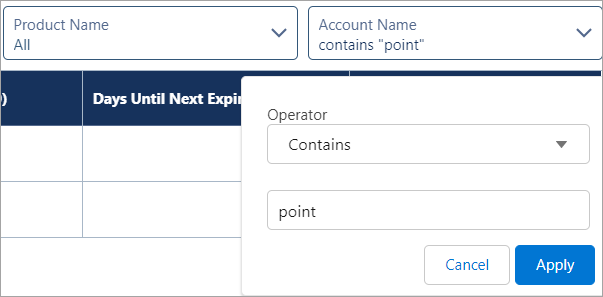
The following image illustrates the filtering results,

Setting Notifications
You can set and receive notifications when a specified data point changes in the Product Engagement dashboard. When the notification is set for a data point and the event occurs, an email notification is sent to the email associated with your Salesforce account. The email notification is also available from the Salesforce notification area on the top-right of the page.
To set notifications, follow these steps:
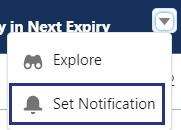
4.Click the down arrow in the top-right corner of the dashboard, and select Set Notification.
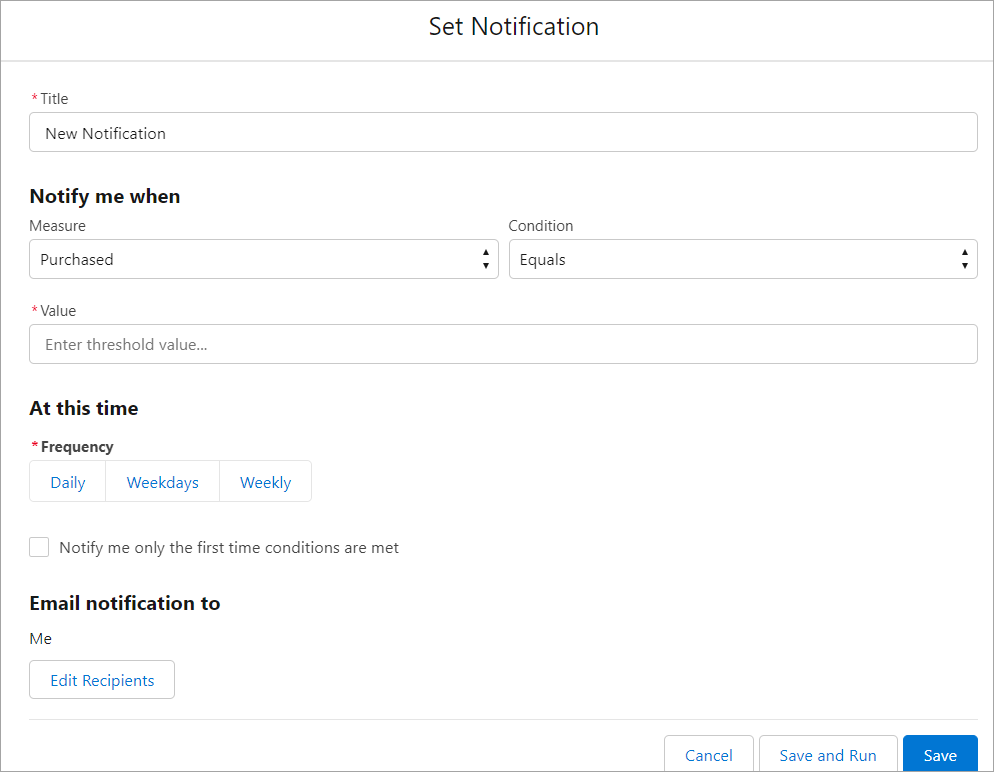
5.Enter the required information to set a new notification to be sent to the selected recipients.
6.Click Save.