
Webhooks
NOTE Webhooks is a Sentinel EMS add-on feature available with an active webhooks subscription plan.
|
>About Authentication Profiles
|
What Is a Webhook?
Webhooks enable Sentinel EMS to notify subscriber applications (or services) about a new creation, an update, or a deletion of a Sentinel EMS entity. Through webhooks, Sentinel EMS sends event notifications to subscriber applications, allowing them to automatically respond to business events and perform relevant actions in real-time. For example:
>Triggering automated workflows
>Enabling third-party integrations
>Enhancing real-time data synchronization
>Supporting business intelligence and reporting
In Sentinel EMS, webhooks support OAuth and Basic authentication to send HTTP requests to the subscriber applications.
Prerequisites for Creating a Webhook
Only Sentinel EMS administrators can create webhooks. Webhooks require an authentication profile (Basic or OAuth) to authenticate with client applications. You can define the authentication profile when creating the webhook.
Events and Activities
This section describes the events and activities supported by Sentinel EMS webhooks.
Events (What Happens)
An event indicates that a change has occurred in a Sentinel EMS entity. It is triggered whenever an operation—such as creating or updating an entity—takes place. For example, when you add a new entitlement, the Entitlement Added event is triggered. You can subscribe to events using webhooks. When a subscribed event occurs, Sentinel EMS sends a notification, along with detailed information (in a JSON payload), to your application.
Activities (How It Happens)
An activity identifies the specific operation that caused the event. While an event indicates that something happened, an activity explains the exact action that triggered it. A single event can be triggered by multiple activities. For example, the Entitlement Added event can result from activities such as Add Entitlement, Split or Transfer Entitlement, or Bulk Entitlement Upload. When configuring a webhook, you can filter event notifications based on these activities so that notifications are sent only for the specific operations you want to track. The webhook payload includes the activity name, allowing your application to determine the exact cause of the event.
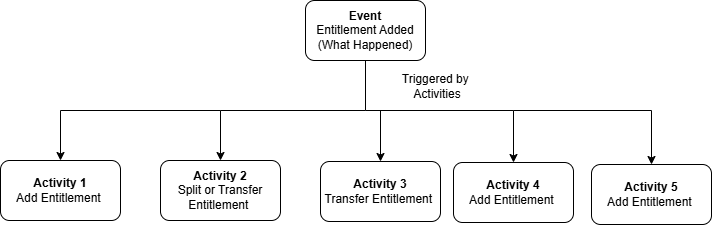
The following table lists the supported events by entity and operation, along with their corresponding activities. Here, "Contact" refers to the User entity, and "User" refers to the Vendor User entity:
NOTE Use the event and activity names exactly as shown in this table when configuring the webhook endpoints in Sentinel EMS REST API Reference. Activity names are case-sensitive and space-sensitive.
For example, the Add Entitlement activity is valid, but Add entitlement or AddEntitlement is not.
| Entity | Operation | Event (Names) | Activity (Names) |
|---|---|---|---|
| Entitlement | Create | Entitlement Added |
Add Entitlement Add Draft Entitlement Add Batch Entitlement |
|
Bulk Entitlement Upload |
|||
| Split or Transfer | |||
| Update | Entitlement Updated |
Update Entitlement Replace Entitlement Delete Entitlement |
|
|
Associate Contact Remove Associated Contact |
|||
|
Associate Customer Remove Associated Customer |
|||
|
Add Product Key Update Product Key |
|||
|
Associate Named Users Update Associated Named User Remove Associated Named User |
|||
|
Split or Transfer |
|||
|
Associate Partners Remove Associated Partner Update Associated Partners |
|||
|
Add Activation |
|||
|
Entitlement Expired Enable Entitlement Disable Entitlement Close Entitlement |
|||
|
Enable Product Key Disable Product Key Close Product Key |
|||
|
Associate Product Bundles Update Associated Product Bundles |
|||
| Product Key | Update
|
Product Key Expired | Product Key Expired |
| Product Key Quantity Exhausted |
Add Activation Split or Transfer |
||
| Fingerprint | Create | Fingerprint Added | Add Fingerprint |
| Update | Fingerprint Updated |
Update Fingerprint Delete Fingerprint Replace Fingerprint |
|
| Activation | Create | Activation Added |
Add Activation Renew Activation Rehost Activation |
| Update | Activation Updated |
Update Activation Renew Activation Rehost Activation |
|
|
Associate Activatees Replace Activatees Update Activatees |
|||
|
Mark as Revoked Mark as Bulk Revoked Custom Revocation Generate Permission Tickets Submit Revocation Proofs Confirm Revocation Reject Revocation |
|||
| License Grant | Create | License Grant Added | Add License Grant |
| Update | License Grant Updated |
Replace Access Grant Remove Access Grant Update License Grant Delete License Grant |
|
| Customer | Create | Customer Added |
Add Customer Bulk Customer Upload |
| Update | Customer Updated |
Update Customer Replace Customer Delete Customer |
|
|
Replace Associated Contacts Update Associated Contacts Delete Associated Contact |
|||
|
Update External Contacts Delete External Contact |
|||
| User | Create | Contact Added |
Add Contact Bulk Contact Upload |
| Add Activation | |||
|
Manage Activatee |
|||
| Update | Contact Updated |
Update Contact Replace Contact Delete Contact Register Contact |
|
|
Change Password Forgot Password Remove Password |
|||
| Product Consumer Authorization | Create | Product Consumer Authorization Added |
Add Product Consumer Authorization |
| Update | Product Consumer Authorization Updated |
Update Product Consumer Authorization Replace Product Consumer Authorization |
|
| Remove User Association | |||
| Channel Partner | Create | Partner Added | Add Partner |
| Update | Partner Updated |
Update Partner Replace Partner Delete Partner |
|
|
Add Partner User Update Partner User Replace Partner User Delete Partner User |
|||
| Product | Create | Product Added |
Add Product Add Draft Product |
|
Bulk Product Upload |
|||
| Update | Product Updated |
Update Product Replace Product Delete Product |
|
|
Replace Associated Features Update Associated Features Delete Associated Feature |
|||
|
Add Entitlement Delete Entitlement |
|||
| Feature | Create | Feature Added |
Add Feature Bulk Feature Upload |
| Update | Feature Updated |
Update Feature Replace Feature Delete Feature |
|
|
Update Associated License Models Replace Associated License Models Delete Associated License Model |
|||
|
Add Entitlement Delete Entitlement |
|||
| License Model | Create | License Model Added | Add License Model |
| Update | License Model Updated |
Update License Model Replace License Model Delete License Model |
|
| Product Bundle | Create | Product Bundle Added |
Add Product Bundle Bulk Product Bundle Upload |
| Update | Product Bundle Updated |
Update Product Bundle Replace Product Bundle Delete Product Bundle |
|
|
Update Associated Products Replace Associated Products Delete Associated Product |
|||
|
Product Suite (Deprecated) |
Create | Product Suite Added |
Add Product Suite Bulk Product Suite Upload |
| Update | Product Suite Updated |
Update Product Suite Replace Product Suite Delete Product Suite |
|
|
Update Associated Products Replace Associated Products Delete Associated Product |
|||
| Namespace | Create | Namespace Added | Add Namespace |
| Update | Namespace Updated |
Update Namespace Replace Namespace Delete Namespace |
|
| Add Entitlement | |||
| Provisioning Request | Update | Provisioning Request Sent | Initiate Provisioning Request |
| Update | Provisioning Completed | Complete Provisioning Request | |
| Update | Provisioning Failed | Provisioning Request Failure | |
| Update | Provisioning Request Dispatch Failed | Initiation Failed For Provisioning Request | |
| Provisioning Association | Create | Provisioning Association Added | Add Provisioning Association |
| Update | Provisioning Association Updated |
Update Provisioning Association Delete Provisioning Association |
|
| Provisioning Method | Create | Provisioning Method Added | Add Provisioning Method |
| Update | Provisioning Method Updated |
Update Provisioning Method Delete Provisioning Method |
|
| Provisioning Plan | Create | Provisioning Plan Added | Add Provisioning Plan |
| Update | Provisioning Plan Updated |
Update Provisioning Plan Delete Provisioning Plan |
|
| Download | Create | Download Added |
Add Download Bulk Download Upload |
| Update | Download Updated |
Update Download Replace Download Delete Download |
|
|
Update Associated Downloads Replace Associated Download Delete Associated Download |
|||
|
Update Associated Products Replace Associated Products Delete Associated Product |
|||
|
Update Associated Customers Replace Associated Customer Delete Associated Customer |
|||
| Sentinel Key | Update | Sentinel Key Association Updated |
Associate Sentinel Keys With Product Key Replace Sentinel Keys In Product Key |
| Remove Sentinel Keys From Product Key | |||
| Device | Create | Device Added | Add Device |
| Update | Device Updated |
Update Device Replace Device |
|
|
Replace Associated Contact Update Associated Contact Delete Associated Contact |
|||
|
Replace Associated Customer Update Associated Customer Delete Associated Customer |
|||
| Claim Device | |||
| Vendor User | Create | User Added | Add User |
| Update | User Updated |
Replace User Update User Delete User |
|
|
Replace Associated Roles Update Associated Roles Delete Associated Roles |
|||
|
Update Associated Market Groups Replace Associated Market Groups Remove Associated Market Group |
|||
|
Change User Password Forgot User Password User Locked |
|||
| Role | Create | Role Added | Add Role |
| Update | Role Updated |
Replace Role Update Role Delete Role |
|
|
Replace Associated Users Update Associated Users Delete Associated User |
|||
| Market Group | Create | Market Group Added | Add Market Group |
| Update | Market Group Updated |
Replace Market Group Update Market Group Delete Market Group |
|
|
Replace Associated Namespace Update Associated Namespace Delete Associated Namespace |
|||
|
Replace Associated User Update Associated User Delete Associated User |
|||
|
Replace Linked Market Groups Update Linked Market Groups Remove Linked Market Group |
|||
| Application Properties | Update | Application Properties Updated | Update Application Properties |
| Custom Attributes | Create | Custom Attribute Added | Add Custom Attribute |
| Update | Custom Attribute Updated |
Update Custom Attribute Delete Custom Attribute |
|
| List Attribute | Create | List Attribute Added | Add Custom Attribute |
| Update | List Attribute Updated |
Replace Associated Options Update Associated Options Delete Associated Options |
|
| Custom Entity | Create | Custom Entity Added | Add Custom Entity |
| Update | Custom Entity Updated |
Update Custom Entity Replace Custom Entity Delete Custom Entity |
|
| Custom Entity Attribute | Create | Custom Entity Attribute Added | Add Custom Entity Attribute |
| Update | Custom Entity Attribute Updated |
Update Custom Entity Attribute Replace Custom Entity Attribute Delete Custom Entity Attribute |
|
| Custom Entity Record | Create | Custom Entity Record Added | Add Custom Entity Record |
| Update | Custom Entity Record Updated |
Update Custom Entity Record Replace Custom Entity Record Delete Custom Entity Record |
Event Notification Data
A webhook subscribes to a Sentinel EMS event. When the subscribed event occurs in Sentinel EMS, the webhook delivers an event notification in JSON format to the configured URL in an HTTP POST request.
The following examples show the event notification data that webhooks deliver to the subscriber application URL:
Example for the "Add Namespace" Event:
{
"eventName": "Namespace Added",
"entityName": "Namespace",
"webhookId": "08c61b38-8523-4eb1-9b01-b12a2e6a583c",
"webhookName": "NSADD",
"activityName": "Add Namespace",
"requestId": "9876f57e-58d7-460d-bc39-06d6ee65be1b",
"eventId": "5c9d6072-b5bf-4640-8aae-422a52847994",
"url": "https://api.example.com/ems/v5/namespaces",
"entityId": "e60db72f-a446-43cb-9a25-0d8c36fe7b3b",
"currentState": "{\"namespace\":{\"id\":\"e60db72f-a446-43cb-9a25-0d8c36fe7b3b\",\"createdBy\":\"admin\",\"creationDate\":\"2025-07-23 10:01\",\"lastModifiedBy\":\"\",\"lastModifiedDate\":\"\",\"name\":\"EDUCATIONAL\",\"description\":\"\",\"state\":\"DRAFT\",\"refId1\":\"\",\"refId2\":\"\"}}",
"opDatetime": "2025-07-23 10:01:33.437"
}
Example for the "Update Namespace" Event:
{
"eventName": "Namespace Updated",
"entityName": "Namespace",
"webhookId": "9788bfb9-14d3-494c-b583-f27280b3e367",
"webhookName": "NSUPD",
"activityName": "Replace Namespace",
"requestId": "8edffd14-7f60-4f7a-9390-4cb645f5f4d7",
"eventId": "aee827d7-d1e6-4ae8-ab9b-db5791ab3bda",
"url": "https://api.example.com/ems/v5/namespaces/123e4567-e89b-12d3-a456-426614174000",
"entityId": "e60db72f-a446-43cb-9a25-0d8c36fe7b3b",
"previousState": "{\"namespace\":{\"id\":\"e60db72f-a446-43cb-9a25-0d8c36fe7b3b\",\"createdBy\":\"admin\",\"creationDate\":\"2025-07-23 10:01\",\"lastModifiedBy\":\"\",\"lastModifiedDate\":\"\",\"name\":\"EDUCATIONAL\",\"description\":\"\",\"state\":\"DRAFT\",\"refId1\":\"\",\"refId2\":\"\"}}",
"currentState": "{\"namespace\":{\"id\":\"e60db72f-a446-43cb-9a25-0d8c36fe7b3b\",\"createdBy\":\"admin\",\"creationDate\":\"2025-07-23 10:01\",\"lastModifiedBy\":\"admin\",\"lastModifiedDate\":\"2025-07-23 10:02\",\"name\":\"EDUCTATIONAL\",\"description\":\"educational
items\",\"state\":\"DRAFT\",\"refId1\":\"\",\"refId2\":\"\"}}",
"opDatetime": "2025-07-23 10:02:30.409"
}
Example for the "Product Key Quantity Exhausted" Event:
{
"eventName": "Product Key Quantity Exhausted",
"entityName": "Entitlement",
"webhookId": "320d390f-0360-4149-b69d-bcadcf2ce8b3",
"webhookName": "PKIDQTYEXHT",
"activityName": "Add Activation",
"requestId": "d8f9df9d-4d86-4d92-a71c-e6b396834eb7",
"eventId": "e0d78fdb-6b3e-427a-92d1-51b666ddc9ab",
"url": "https://api.example.com/ems/v5/activations/bulkActivate",
"entityId": "9d03e346-82eb-4059-b95e-1b1e205ca07b",
"opDatetime": "2025-07-23 10:04:14.760"
}
The parameters included in the event notification data are:
>eventName: Name of the subscribed event.
>entityName: Name of the Sentinel EMS entity for which the event occurred.
>webhookId: Unique identifier of the webhook.
>webhookName: Name of the webhook.
>activityName: Name of the activity that causes the event. For example, "Add Feature" and "Bulk Feature Upload" activities result in the "Feature Added" event.
>requestId: Unique identifier of the HTTP request sent to Sentinel EMS and from Sentinel EMS to subscriber applications.
>eventId: Identifier of the subscribed event in Sentinel EMS.
>url: URL of the Sentinel EMS endpoint that is called for the event to happen.
>entityId: Identifier of the Sentinel EMS entity for which the event occurred.
>currentState: Entity state (in JSON format) after the event occurred. It is blank for "Delete" events.
>previousState: Entity state (in JSON format) before the event occurred.
>opDatetime: Time at which the event occurred in milliseconds.
NOTE
>The current state and previous state are included in the event notification data only if Include Data is set to Yes in a webhook.
>The Entitlement Expired event contains full entitlement payload only in the current state.
>The payload of the Product Key Quantity Exhausted event does not contain all the product keys for an entitlement. It contains selective entitlement fields for entitlement, customer, contact (representing the user entity), channel partner, product keys, and custom attributes, without any feature details.
>When an individual product key expires, then the Product Key Expired event is sent. When an entitlement expires, all the product keys in the entitlement also expire, however, only the Entitlement Expired event is sent.
>To configure the time zone in which the Entitlement Expired and Product Key Expired events occur, set the Time Zone for Expiration Events admin console property.
Creating a Webhook
To create a webhook:
1.From the navigation pane, select Configuration > Webhooks to view the Webhooks page.
2. Click Add Webhook. The Add Webhook page opens.
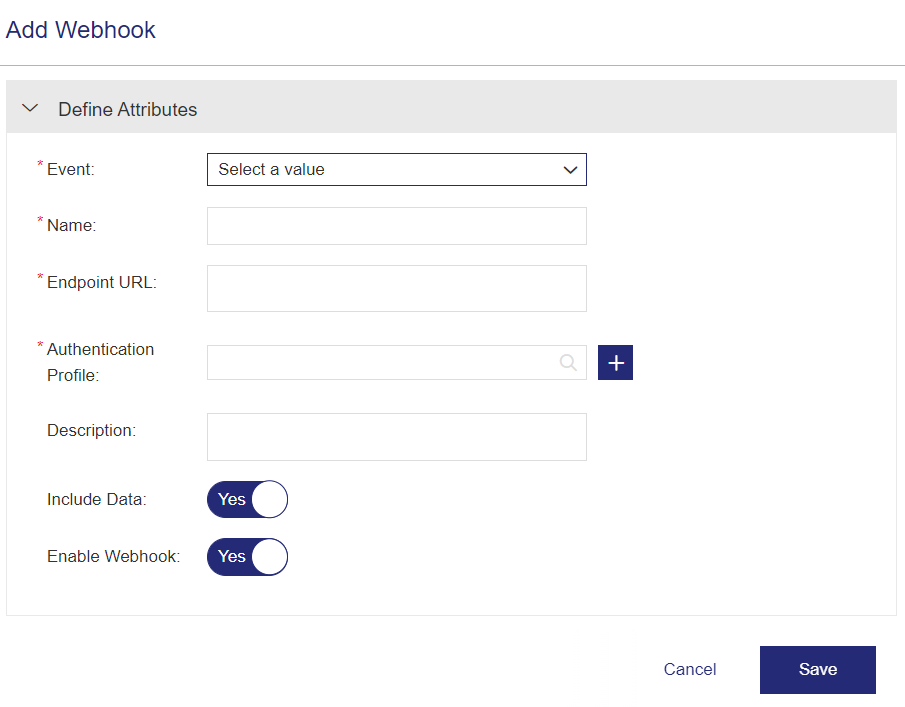
3.Fill in the webhook attributes and click Save.
Webhook Attributes
The following table explains the attributes that are used to create a webhook:
| Attribute | Description | Required/Optional | Valid Values |
|---|---|---|---|
| Define Attributes | |||
| Name |
Unique name of the webhook.
|
Required |
>Maximum: 100 characters >Alphanumeric >Special characters |
| Endpoint URL |
The URL of the subscriber application to which the webhook posts the event data in the form of JSON. |
Required |
>Maximum: 2000 characters >Alphanumeric >Special Characters (- _ . ~ : / ? # @ ! $ & ( ) * + , ; =) |
| Authentication Profile |
Authentication profile used by Sentinel EMS to authenticate webhook requests sent to the subscriber endpoint. Enter a space to view the list of available authentication profiles. Select an authentication profile from the displayed list or click the |
Required | A new or an existing authentication profile |
| Event |
Name of the event subscribed by the webhook. |
Required |
>A list of predefined events |
| Description | A user-friendly description to identify the webhook. | Optional |
>Maximum: 500 characters >Alphanumeric |
| Enable Webhook | Determines whether the webhook can post event data to the endpoint URL. You can disable a webhook if you want it to stop sending the event data to the subscriber application. | Optional |
Yes OR No Default: Yes |
| Filter Events | |||
|
Filter Activities |
Select the activities that should trigger this webhook. Use Filter Activities to ensure that only event notifications relevant to your integrations are sent. |
Optional | By default, a webhook is triggered for all activities under the selected event. |
|
|
Trigger Conditions for the event notification. You can define trigger conditions only for the following events: >Entitlement Added >Entitlement Updated >Activation Added >Activation Updated Note: When both activity filtering and trigger conditions are defined, the webhook fires only if both conditions are satisfied. If no trigger condition is defined, the webhook is triggered for every occurrence of the selected event (and activity, if specified). |
Optional | |
| Configure Payload | |||
| Include Data | Specifies whether to include previous and current states of the entity (for which the event happened) in the event notification data sent to the endpoint URL. | Optional |
Yes OR No Default: Yes |
| Payload Fields |
Specifies the fields and objects of the entity to include in the webhook payload. Click the { } icon next to this field to open the Configure Webhook Payload dialog, where you select or clear checkboxes to customize the payload. |
Optional |
>All fields included (Default): Appears when all fields are selected or no customization is made. The system sends the full event payload. >Selected fields only (Custom): Appears when a custom selection is saved. Only the selected fields and objects are included in the payload. |
 Add Authentication button to create a new one. For details, see
 Trigger Conditions
When creating or editing a webhook, you can define trigger conditions. Webhook trigger conditions allow you to define specific conditions that determine when a webhook should be processed. This removes the need for external filtering or dispatcher services by enabling you to configure conditions directly within the webhook definition.
You can use trigger conditions to implement selective event handling, such as filtering events for specific products, customers, partners, or market groups, based on attributes such as product mappings or geographical regions. This ensures that only relevant events trigger the webhook, improving efficiency and reducing unnecessary processing.
To manage trigger conditions:
1.In the Add Webhook page, click the Manage Trigger Conditions  button.
2.In the Manage Trigger Conditions dialog box, define the Webhook Trigger Conditions Attributes and click Save.
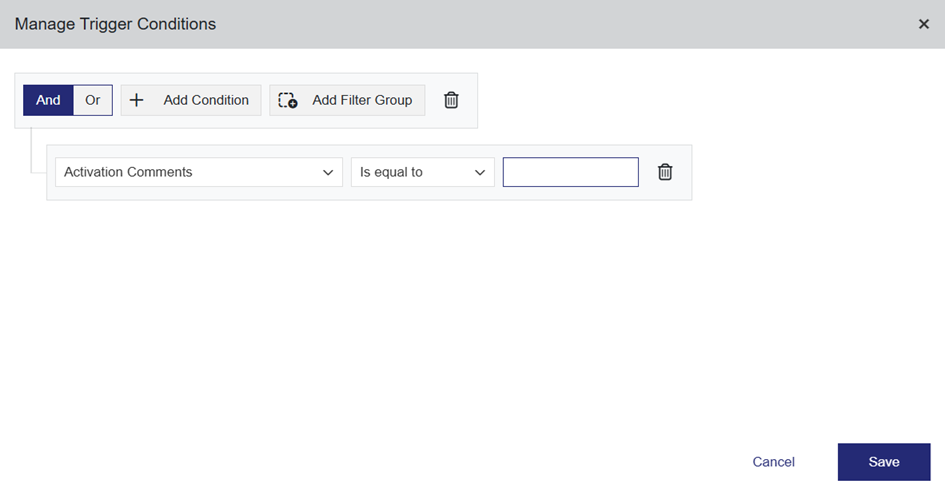
Webhook Trigger Conditions Attributes
| Attribute | Description |
|---|---|
| And/Or |
Specifies the logical operator that connects multiple conditions. >And: The webhook triggers only if all specified conditions are true. >Or: The webhook triggers if any of the specified conditions is true. |
| Add Condition (+) | Adds a new condition to the current group. Each condition consists of an attribute, an operator, and a value. |
| Add Filter Group |
Adds a nested group of conditions, allowing you to combine multiple sets of conditions using And/Or logic. |
| Condition Row |
Enables you to set the following: >Attribute: The list displays all supported attributes for the selected event. Select an attribute to build a condition, for example, Product Name. After you save the condition, all attributes used in it are automatically converted to their corresponding JSON values. >Operator: Select the comparison operator—Is not equal to or Is equal to. >Value: Enter the value to be used for comparison. The condition is evaluated against the given value without validating the value. The condition triggers only when the entered value is valid. |
| Delete button |
Removes a condition or group. |
| Save |
Saves the defined trigger condition and returns to the Webhooks page, where the condition is converted into a corresponding JEXL expression. You can copy this expression using the Copy to Clipboard option in the Webhooks page. |
| Cancel |
Discards changes and closes the dialog box. |
Managing Trigger Conditions—A Walkthrough
The following expression comprises a nested set of conditions:
((entitlement.customer.name == 'Sam Smith' && entitlement.state == 'ENABLE') || (entitlement.contact.externalId == '617AWUD'))
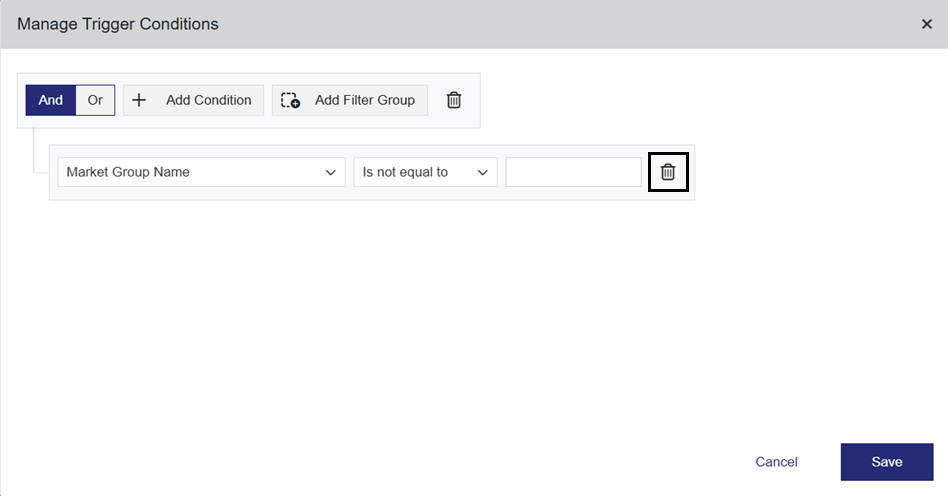
To create this expression, perform the following steps in the Manage Trigger Conditions dialog box:
|
1.Click the Delete button to remove the existing condition row. |
|
|
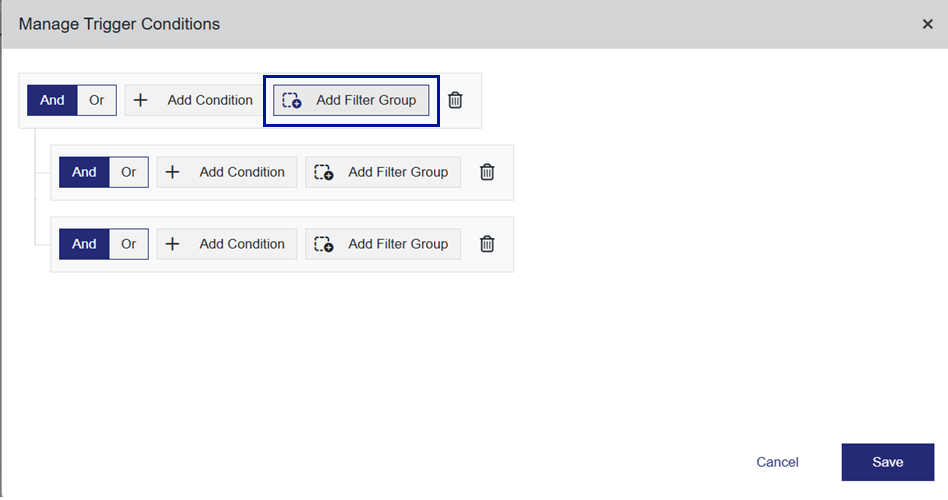
2.Click Add Filter Group twice to create two filter groups, under which you can define multiple sets of conditions. |
|
|
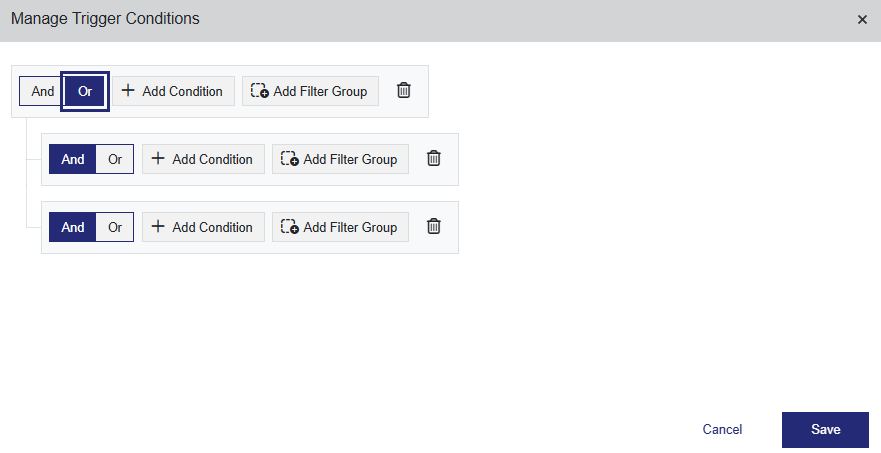
3.Click Or in the parent filter group to define the logical relationship between the filter groups. |
|
|
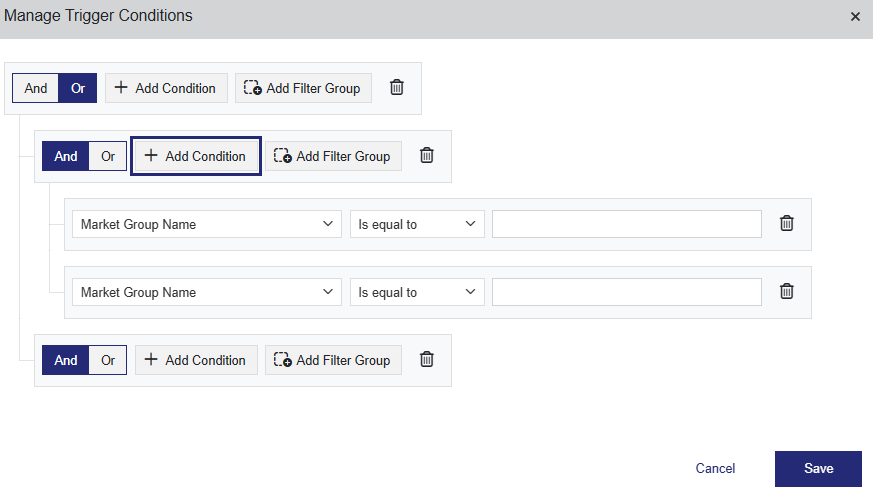
4.Click Add Condition twice to create two condition rows in the first filter group. |
|
|
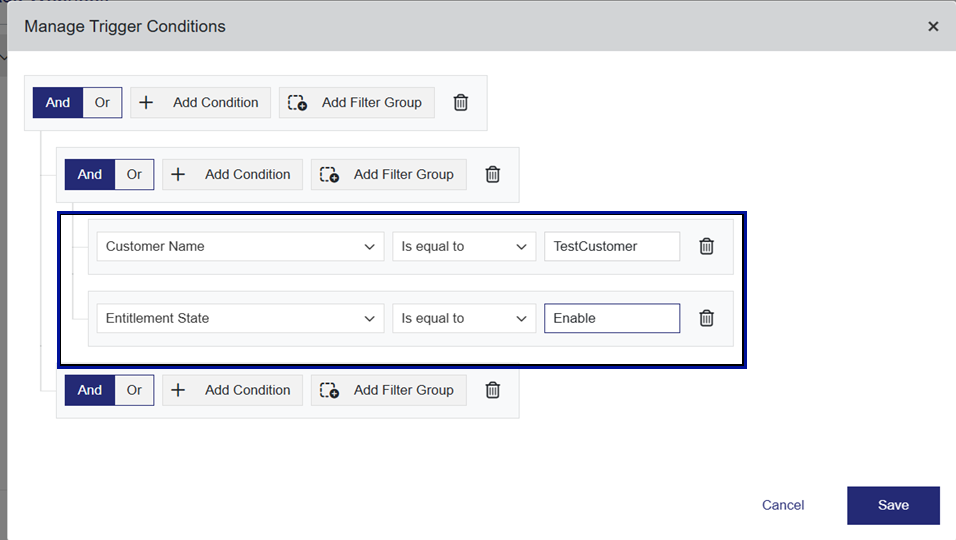
5.Set the following values in the newly added condition rows: 1st Condition Row: •Attribute: Customer Name •Operator: Is equal to •Value: Sam Smith 2nd Condition Row: •Attribute: Entitlement State •Operator: Is equal to •Value: ENABLE |
|
|
6.Click Add Condition to add a new condition row in the second filter group. |
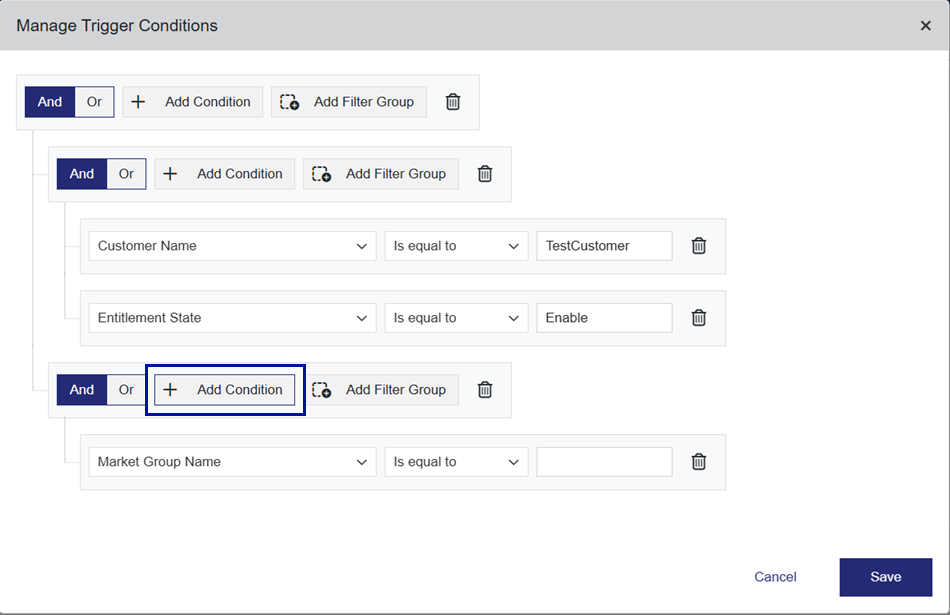
|
|
7.Set the following values in the newly added condition row: •Attribute: Market Group Name •Operator: Is equal to •Value: 617AWUD |
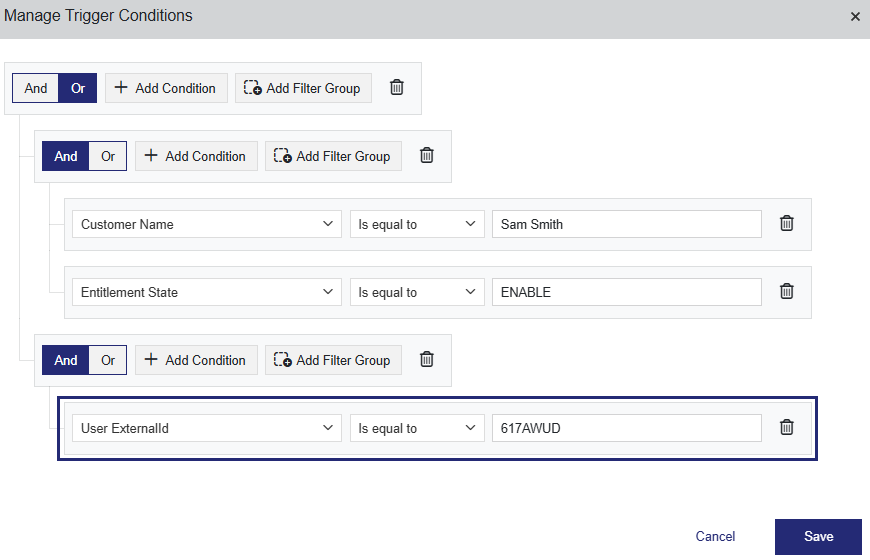
|
|
8.Click Save. |
Defining Trigger Conditions Using the Sentinel EMS REST API
You can use the Add Webhook, Replace Webhook, and Update Webhook APIs, as described in the Sentinel EMS REST API Reference, to define trigger conditions. These APIs offer greater flexibility by supporting advanced JSON path navigation operators.
For example, when using the API, you can include both the [*] array wildcard to access all items and [index] indexed array to access a specific item. In contrast, trigger conditions created through the Manage Trigger Condition dialog box in Sentinel EMS vendor portal support only the [*] operator. As a result, if a trigger condition is defined through the Sentinel EMS REST API and contains symbols other than [*], it can only be modified using the API, not through the Sentinel EMS vendor portal.
The following symbols are supported using APIs:
| Supported Symbols | Example | Description |
|---|---|---|
| . (dot) | entitlement.customer.name == 'TestCustomer'
|
Evaluates to true if the name of the customer exactly matches 'TestCustomer'. |
| ' (single quotes) | entitlement.state == 'ENABLE'
|
Indicates that the string-enclosed value is a string. |
| == (equality operator) | entitlement.state == 'ENABLE'
|
Evaluates to true if the entitlement’s state is equal to 'ENABLE'. |
| != (inequality operator) | status != 'CLOSE'
|
Evaluates to true if the entitlement’s state is not equal to 'CLOSE'. |
| * (wildcard) | entitlement.customer.* == 'TestCustomerExternalId'
|
Evaluates to true if any customer property exactly matches 'TestCustomerExternalId'. |
| () (parentheses) |
|
Evaluates to true if either the customer name must be ‘TestCustomer’ with identifier ‘1111’, or the market group is ‘APAC’ and the entitlement's state is ‘DRAFT’. |
| [*] (array wildcard) | entitlement.productKeys.productKey[*].item.itemProduct.product.nameVersion.name == 'TestProduct'
|
Evaluates to true if at least one product name in entitlement's product keys matches 'TestProduct'. |
| [1] (array index) | entitlement.productKeys.productKey[1].item.itemProduct.product.nameVersion.name == 'TestProduct'
|
Evaluates to true if the second product name in entitlement's product keys matches 'TestProduct'. |
Configure Payload
By default, Sentinel EMS sends the complete event payload to the webhook subscriber. While the full payload provides detailed event data, it can introduce parsing complexity and processing overhead for subscribers that need only a few specific attributes to trigger their integrations.
The Configure Payload feature lets you select a specific subset of fields and objects to include in the webhook notification payload. By customizing the payload, you can reduce network bandwidth usage and simplify downstream parsing logic on the subscriber side.
Prerequisites
>Configure Payload is supported for the following events only:
•Entitlement Added
•Entitlement Updated
•Activation Added
•Activation Updated
>Payload Fields is visible if Include Data is set to Yes for the webhook.
Configure Webhook Payload Dialog
The Configure Webhook Payload dialog provides an interactive interface to define which fields and objects to deliver to subscribers. The dialog contains two panes:
Select Fields Pane (left)
The Select Fields pane displays the hierarchical schema of the entity (for example, entitlement or activation). It supports two levels of selection:
>Field-level selection: Select or clear the checkbox next to an individual property to include or exclude it from the payload.
>Object-level selection: Select a parent object checkbox to include all its nested attributes, or expand the object to select individual nested attributes. If only some child fields are selected, the parent object checkbox displays a partially selected state.
GraphQL Query Pane (right)
The GraphQL Query pane dynamically displays a preview of the generated GraphQL query as you select or clear fields in the left pane. The pane provides two actions:
>Format GraphQL: Formats the query preview for easier readability.
>Copy to Clipboard: Copies the query to your clipboard. A confirmation notification appears on success. The copied query is valid and can be used directly in the Sentinel EMS REST APIs.
NOTE
The configured payload structure applies as follows:
>For Added events (Entitlement Added, Activation Added): The configured selection applies to the currentState field only.
>For Updated events (Entitlement Updated, Activation Updated): The same configured selection applies to both the currentState and previousState fields.
> The custom settings are preserved when:
•The webhook is disabled and then re-enabled.
•Include Data is toggled to No and then back to Yes.
•The webhook is edited at a later time.
The system delivers the full event payload when the Select Fields pane meets any of the following conditions:
>No customization is made.
>All checkboxes are selected
>All checkboxes are cleared
To configure webhook payload fields:
1.On the Add Webhook or Edit Webhook page, ensure that a supported event is selected and that Include Data is set to Yes.
2.Under Configure Payload, click the { } icon next to the Payload Fields field. The Configure Webhook Payload dialog opens.
3.In the Select Fields pane, expand the entity tree and select or clear the checkboxes to match your requirements.
4.Review the generated query in the GraphQL Query pane. To copy the query to your clipboard, use the Copy to Clipboard option.
5.Click Save to store the configuration. The dialog closes, and the Payload Fields hint text changes from All fields included (Default) to Selected fields only (Custom).
Viewing Configurations in Webhook Overview
After the webhook is saved, the webhook overview page displays a contextual link in the webhook details section:
>The link text displays All fields included (Default) if no customization is applied, or Selected fields only (Custom) if a custom configuration is saved.
>Click the link to open the Configure Webhook Payload dialog in read-only mode. In this mode, you can view the configured structure and copy the generated GraphQL query, but you cannot modify or format the selections.
Special Handling for Attributes with Multiple Values
When you use attributes that support multiple values, such as custom attributes or enforcements, the Configure Webhook Payload dialog handles them dynamically:
>In the Select Fields pane (left): The multi-value attribute appears as a root node, with name and value as its child nodes.
>In the GraphQL Query pane (right): The pane is editable, allowing you to enter or apply a filter directly to select only the attribute values you need. This lets you verify the resulting attribute payload structure before saving.
The following example filters based on a custom attribute named ABC and returns its name and value:
entitlement { customAttributes { customAttribute(filters: [{ name: "ABC" }]) { name value } } }Troubleshooting and Retries
When a webhook fails to deliver a notification, Sentinel EMS automatically attempts to resend it. This section explains the retry mechanism and provides guidance on how to troubleshoot and resolve delivery failures.
Retry Mechanism
When a delivery fails, Sentinel EMS automatically retries up to three times at predefined intervals. The interval between retries is not configurable, and the entire retry sequence is completed within approximately one hour.
Notification Delivery States
Webhook notifications can have the following delivery states during the retry process:
>In-progress State: Indicates that automatic retries are in progress. During this time, the notification cannot be manually retried.
>Failed State: Indicates that all automatic retries have failed. You can investigate the cause and manually retry the notification.
Troubleshooting Failed Notifications
Use the following approach to troubleshoot failed webhook notifications:
1.Identify Failed Notifications: Use the Search Events API, as described in the Sentinel EMS REST API Reference, to find event notifications with a "FAILED" delivery status. The response may include an error message that helps diagnose the issue. You can search for notifications by webhook ID, event ID, or a time range.
2.Diagnose the Root Cause: Based on the error message and your configuration, identify the issue. Common problems include:
•Incorrect Endpoint URL: Ensure the URL in the webhook definition is correct and publicly accessible. Sentinel EMS cannot reach `localhost` or other private network addresses.
•Authentication Failures: Verify the credentials configured in the associated Authentication Profile. Check for expired passwords, incorrect client secrets, or invalid token URLs.
•Subscriber Application Errors: Inspect the logs of your endpoint application. It may return an HTTP 4xx or 5xx error, indicating a problem with how it processes the incoming request from Sentinel EMS.
•Network and Firewall Issues: Confirm that your firewall or network security rules are not blocking POST requests from Sentinel EMS IP addresses.
3.Manually Retry the Notification: Once you have fixed the underlying issue, use the Retry Event API, as described in the Sentinel EMS REST API Reference, to request another delivery attempt. You can retry a single notification by its event ID or multiple notifications using filters. This triggers up to three new delivery attempts.
4.Clean Up Failed Notifications (Optional): If the issue has already been resolved or the notifications no longer need to be delivered, you can use the Mark as Bulk Successful API, as described in the Sentinel EMS REST API Reference. This action changes the status of specified failed notifications to successful and removes them from the failure queue, which can help simplify monitoring.
Actions for Webhooks
The following table lists the actions available for webhooks:
| Action | Description | |
|---|---|---|
|
|
Edit |
Updates an existing webhook. For details on editing webhooks, see Editing an Entity. |

|
Disable | Prevents the webhook from sending event data to the subscriber application. |

|
Delete |
Deletes a webhook. |