
Market Groups
|
>Prerequisites for Creating a Market Group >Market Group Associations with Sentinel EMS Entities >Lifecycle Stages of a Market Group |
New to Sentinel EMS?
|
What Is a Market Group?
A market group provides an added layer of access control that enables you to increase the operational efficiency of Sentinel EMS by segregating data access according to geographical location or business unit.
A market group can be used to define a segment of people who share some common characteristics and can be grouped together for marketing purposes. Each market group can be used to create a target market for specific Sentinel EMS catalog elements and their entitlements. Market groups define access levels by mapping vendor users and catalog elements.
The following diagram illustrates a market group and its associations with Sentinel EMS entities such as namespaces, vendor users, customers, users, entitlements, and activations:

Prerequisites for Creating a Market Group
You must have administrative rights in Sentinel EMS.
Market Group Associations with Sentinel EMS Entities
The following table describes how Sentinel EMS entities are mapped to market groups:
| Entity | Description |
|---|---|
| Namespaces |
>Multiple namespaces can be associated with a single market group. >Each namespace can be associated with multiple market groups. NOTE >
>For linked market groups, create a GLOBAL market group without associating any namespace. For details, see Managing Linked Market Groups. |
| Vendor Users |
>Only "standard" vendor users can be associated with a market group. >Multiple vendor users can be associated with a single market group. >Each vendor user can be associated with multiple market groups. |
| Customers |
>Multiple customers can be associated with a single market group. >Each customer can be associated with only one market group. |
| Users |
>Multiple end users can be associated with a single market group. >Each end user can be associated with only one market group. |
| Entitlements |
>Multiple entitlements can be referenced by a single market group. >Each entitlement can be referenced by only one market group. |
| Activations |
>Multiple activations can be referenced by a single market group. >Each activation can be referenced by only one market group. |
 Although each namespace can be associated with multiple market groups,
 NOTE
>If you do not create any market groups, then all namespaces, customers, users, and vendor users with entitlement management roles are associated with the default market group that is provided with Sentinel EMS.
>If you create only one market group, then the vendor user is automatically associated with that market group.
Lifecycle Stages of a Market Group
The lifecycle stage of a market group is defined by the Deployed attribute:
>Deployed: The market group is associated with an entity (vendor user, customer, users, entitlements, or activations).
>Not Deployed: The market group is not associated with any entity.
Creating a Market Group
1.From the navigation pane, select Identities & Access > Market Groups to view the Market Groups page.
2.On the Market Groups page, click the Add Market Group button to create a market group. The following page is displayed:
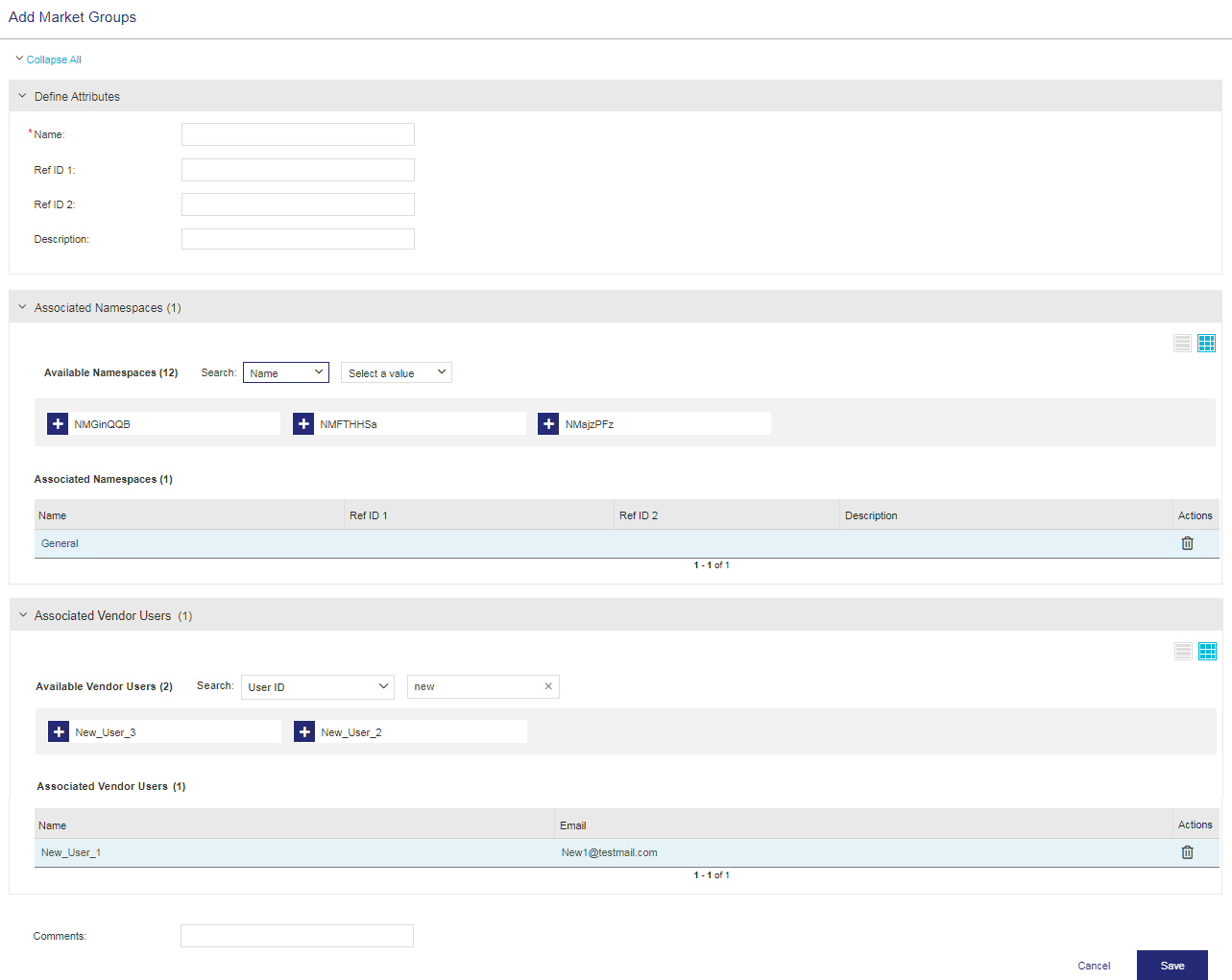
3.Define Market Group Attributes.
4.Associate Namespaces with the market group.
5. Associate Vendor Users with the market group.
6.Click Save.
Market Group Attributes
The following table describes the market group attributes:
| Attribute | Description | Required/Optional | Valid Values |
|---|---|---|---|
| Name | Name of the market group. | Required |
>Must be unique >Alphanumeric >1 to 200 characters |
| Ref ID 1 | Reference identifier that identifies the market group in an external system. | Optional |
>Alphanumeric >0 to 100 characters |
| Ref ID 2 | Reference identifier that identifies the market group in an external system. | Optional |
>Alphanumeric >0 to 100 characters |
| Description | Additional information about the market group. | Optional |
>Alphanumeric >0 to 500 characters |
Associate Namespaces
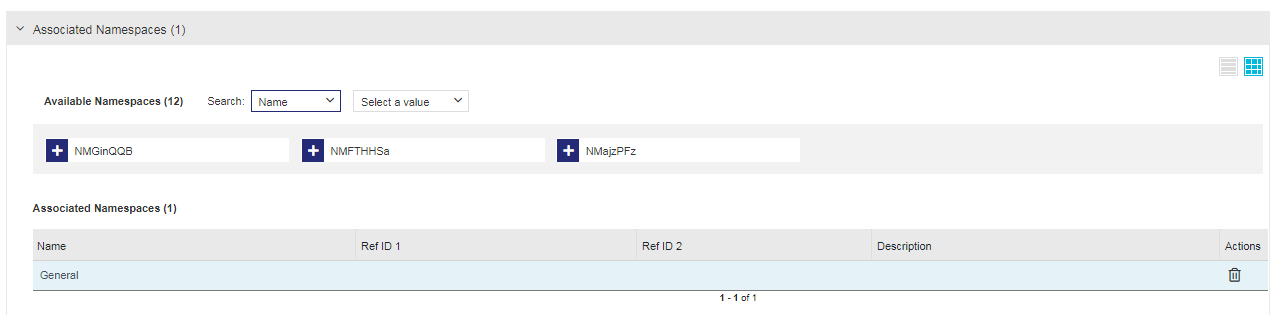
You can associate one or more namespaces with the market group using the Associate Namespaces pane displayed below:
| Attribute | Description |
|---|---|
| Namespace |
The namespace that you want to associate with the market group. Although you can create a market group without associating a namespace, you must associate a namespace before you can start using the market group. For linked market groups, create a GLOBAL market group without associating any namespace. For details, see Managing Linked Market Groups. |
Actions >  Delete Delete |
Removes the associated namespace from the market group. |
Associate Vendor Users
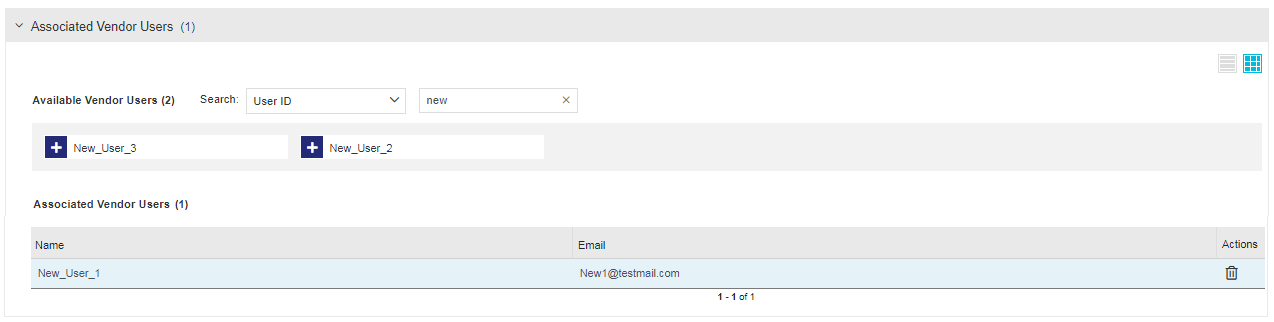
You can associate one or more vendor users with the market group using the Associate Vendor Users pane displayed below:
| Attribute | Description |
|---|---|
| Vendor User |
The vendor user that you want to associate with the market group. Although you can create a market group without associating a vendor user, you must associate at least one vendor user before you can start using the market group. |
| Actions > Delete |
Removes the associated vendor user from the market group. |
Managing Linked Market Groups
You can link market groups to share customers and their users across multiple market groups without creating duplicate records. When you access a specific market group, Sentinel EMS automatically grants access to view customers and their users of the linked market groups. Other entities—such as products, namespaces, entitlements, and activations—remain restricted to their original market group.
You can edit customers and customer users only in market groups directly associated with you, based on your assigned permissions.
For example:
An organization has three regional market groups: AMER, EMEA, and APAC. Each region manages its own products.
Some customers operate globally. Instead of creating these customers separately in AMER, EMEA, and APAC, the administrator creates a GLOBAL market group without namespaces, adds the customers to that market group, and links the market group to the other market groups.
When creating an entitlement in AMER, you can:
>Select products within the AMER market group's namespace.
>Select customers that belongs to the GLOBAL market group.
This allows customer sharing across regions while keeping product ownership regional.
Prerequisites for Managing Linked Market Groups
>You must have administrative rights in Sentinel EMS.
>The market groups you want to link must exist.
To link a market group:
1.From the navigation pane, select Identities & Access > Market Groups to view the Market Groups page.
2.Find the market group you want to link with another market group.
TIP You can filter the displayed list using the available Search parameters.
3.In the Actions column for the relevant market group, click Manage Linked Market Groups.
4.In the Linked Market Groups pane, select one or more market groups to link to the specified market group. The selected items move to the Linked Market Groups pane.
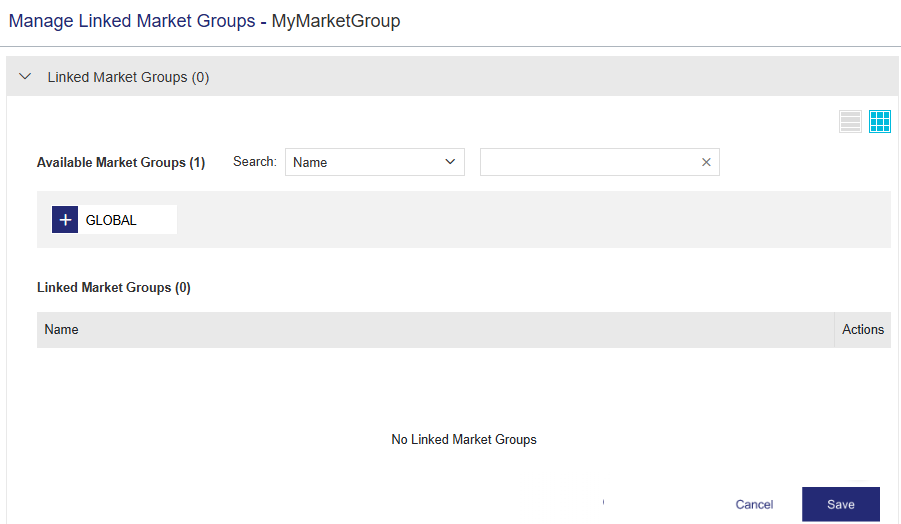
5.Click Save.
Actions for a Market Group
The following table lists the actions available for market groups:
| Action | Description | |
|---|---|---|

|
Edit |
Enables you to update information for an existing market group. |

|
Copy | Duplicates an existing market group, enabling you to edit the copy and create a new market group. You can modify the new market group as needed. |
|
|
Manage Linked Market Groups | Enables you to link an existing market group with one or more available market groups. For details, see Managing Linked Market Groups. |
|
|
Delete |
Deletes a market group. This option is displayed only for non-deployed market groups. |