
 Sentinel Keys
|
>Additional Prerequisites for Checking in a Sentinel Key >Additional Prerequisites for Syncing Revoked Licenses |
New to Sentinel EMS?
|
What is a Sentinel Key?
A Sentinel key is a secure container that stores license terms and permissions for your software. Sentinel keys are available as hardware-based keys (Sentinel HL) and software-based licenses (Sentinel SL). Software-based licenses can also be cloud-based.
After you activate an entitlement or check in a Customer-to-Vendor (C2V) file, Sentinel EMS adds the resulting keys to the Sentinel Keys page. You can use this page to manage Sentinel keys and view key details such as attributes, associated memory, and licensed products, as well as perform operations such as checking in C2V files, downloading Vendor-to-Customer Package (V2CP) files, and syncing revoked licenses to Sentinel EMS. Customer administrators can also manage Sentinel keys using the Sentinel EMS customer portal.
To enforce your license terms, each Sentinel key may include one or more of the following:
>One or more licenses that grant access to your protected applications
>Protected memory that only your applications can use
>An encryption engine that protects your software from unauthorized tampering
The machine running your protected application must access the Sentinel key. Hardware-based keys require a physical connection. Software-based keys require a local or network connection. Cloud-based keys require an internet connection.
When the machine accesses the Sentinel key, end users can run your protected applications according to the license terms you defined.
Prerequisites
Before you begin, make sure you have the required permissions and access for the operation you want to perform.
>A role that includes Activation Management permissions. At minimum, you need the Add permission. For details, see Roles.
>Additional Prerequisites for Checking in a Sentinel Key
•Requires access to one of the following:
–The Customer-to-Vendor (C2V) file generated on the end user's machine.
–The Sentinel HL Key containing the license.
•Your user account must be associated with the same market group as the key you are checking in.
>Additional Prerequisites for Syncing Revoked Licenses
Requires access to both of the following:
•The latest C2V (Customer-to-Vendor) file generated on the end user's machine that includes the revoked product licenses.
•The Sentinel SL AdminMode or SL UserMode key containing the license.
Sentinel Key Status
The Status attribute for a Sentinel key can be one of the following. The default status for a Sentinel key is Enabled. :
| Status | Description |
|---|---|
| Enabled | When you check in a C2V file, the status of the Sentinel key is set to Enabled. |
| Disabled | Relevant only for Sentinel HL (Driverless configuration) keys. Indicates that tampering was detected. Sentinel LDK Envelope run-time module disabled the key because it determined that the user attempted to tamper with the key or with the protected application. For more details, see Sentinel LDK Software Protection and Licensing Guide. |
| Blocked | Relevant only for Sentinel keys that were migrated from Sentinel LDK-EMS in a disabled state. This may occur if the key was disabled using a Sentinel LDK-EMS web service prior to migration. Blocked keys are read-only and cannot receive updates. However, customers can continue using these keys with the existing data. |
| Cloned | Relevant only for Sentinel SL keys. Indicates that Sentinel LDK Run-time detected cloning and disabled the affected licenses. This prevents an end user from logging on to the software for which cloned licenses are detected. The end user must contact you and submit a C2V file from the machine on which the cloned license was detected, together with their Product Key. You can then update the cloned key and reactivate product. For more details about clone protection, see Sentinel LDK Software Protection and Licensing Guide. |
| Out-of-Sync |
Relevant only for CL keys when using Produce and Push. Indicates that the push operation failed for the service-hosted cloud licensing key. |
| Virtual Clock Error |
Relevant only for Sentinel HL (Driverless configuration) keys that: > Do not contain a real-time clock (such as Max keys), and >Use time-based licenses (such as Expiration Date, Time from First Use, or Time from License Generation). Indicates that the difference between the system time on the end user's machine and Sentinel EMS is more than 24 hours. This may signify tampering with the time-based licenses. |
Checking In a Sentinel Key
You can check in a Sentinel key using one of the following options:
>A C2V file generated on the end user’s machine. Use this option for Sentinel SL keys or when you do not have physical access to the Sentinel HL key.
>The Sentinel HL key that contains the license. Use this option when you have physical access to the Sentinel HL key. This eliminates the need to receive a C2V file from your customer each time you perform a check-in.
The check-in process securely uploads the key information to Sentinel EMS and confirms any licenses previously activated on the end user’s Sentinel HL or SL key. This information is then used to manage license updates and synchronize orders.
To check in a Sentinel key:
1.Ensure that the Additional Prerequisites for Checking in a Sentinel Key are met.
2.From the navigation pane, select Sentinel Keys to view the Sentinel Keys page.
3.Click Check In Keys. The Check In Keys page opens.
4.Under Check In Method, in Check In By, select one of the following options:
•C2V – to upload a C2V file.
 View example
•Sentinel HL Keys – to check in directly from a connected hardware key.

5.Depending on the selected method:
•If you selected C2V: In the Upload C2V box, either browse to select a C2V file or drag and drop a C2V file into the Upload C2V area.
You can safely drop the C2V file when you see a large box that instructs you to drop your file in the box. Sentinel EMS validates the C2V file. If the C2V file is valid, the word C2V is embedded in the Upload C2V box and the Key Details area displays data from the C2V. Otherwise, an error message is displayed.
•If you selected Sentinel HL Keys: From the list of keys, select the checkbox next to each key to check in.
–To refresh the list, click Refresh Connected Keys.
–If a key cannot be selected, point to the  icon next to the Key ID to view the reason.
–To identify a physical key, in the Actions column, click Blink Connected Key.
6.Click Check In.
Viewing C2V Data
C2V files are encrypted by default. You can use the Check In C2V page to inspect the contents of a C2V file, for example, to verify key details before checking in or for troubleshooting purposes.
To view C2V data:
1.From the navigation pane, select Sentinel Keys to view the Sentinel Keys page.
2.Click Check In Keys. The Check In Keys page opens.
3.Under Check In Method, in Check In by, select C2V.
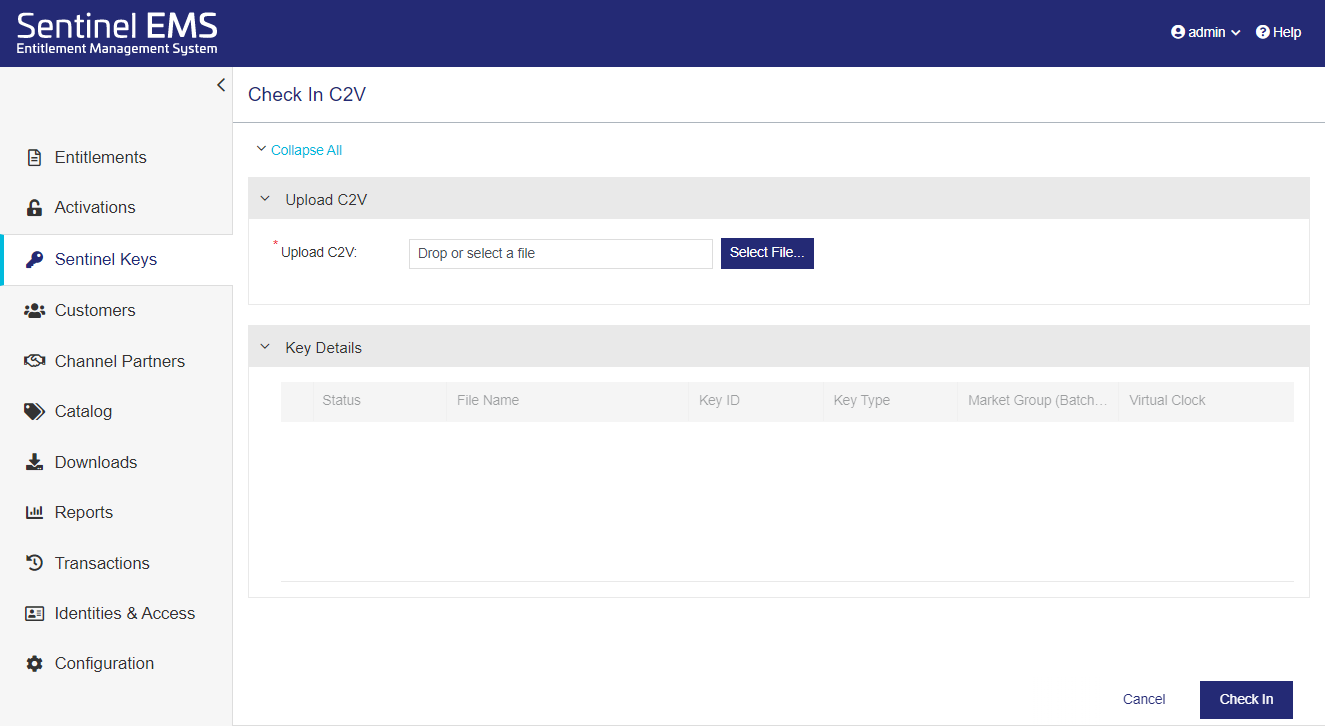
4.In the Upload C2V box, either browse to select a C2V file or drag and drop a C2V file into the Upload C2V area. You can safely drop the C2V file when you see a large box that instructs you to drop your file in the box. Sentinel EMS validates the C2V file. If the C2V file is valid, the word C2V is embedded in the Upload C2V box and the Key Details area displays data from the C2V. Otherwise, an error message is displayed.
5.Expand the Key Details area to view the attributes embedded in the C2V file.
–Expand a product to view its Associated Features.
The following example shows the data available when viewing the content of a C2V file.

Syncing Revoked Product Licenses with Sentinel EMS
After a customer administrator or end user revokes a product license, you can sync the revocation data with Sentinel EMS to re-credit the activation to the entitlement. The process involves obtaining a revocation C2V file from the end user's system and uploading that file to Sentinel EMS. The revocation C2V file is generated using Sentinel Admin Control Center or a vendor-provided utility. For details, see Sentinel LDK Software Protection and Licensing Guide.
NOTE You can also revoke and sync product licenses simultaneously using the Custom Revocation endpoint as described in the Sentinel EMS REST API Reference.
To sync revoked product licenses:
1.Ensure that the Prerequisites are met.
2.From the navigation pane, select Sentinel Keys to view the Sentinel Keys page.
3.Expand the Sentinel key that contains the revoked product licenses that you want to sync.
4.Click Sync Revocation.
a.In the Sync Revocation dialog box, do one of the following to upload the revocation C2V file:
–Click Select File. Then browse to and select the revocation C2V file.
–Drag and drop the revocation C2V file into the dialog box.
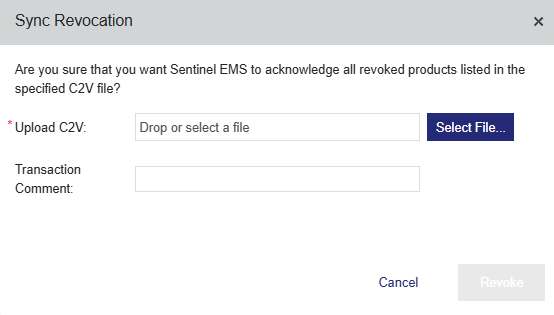
b.(Optional) In the Transaction Comment box, add a description for the revocation. The description is stored in the Sentinel key and is displayed on the Transactions page after synchronization.
c.Click Revoke. Sentinel EMS checks for pending updates or revocation data to sync. If found, Sentinel EMS:
–Synchronizes the uploaded C2V file.
–Removes the revoked product licenses from the Sentinel key, including any associated dynamic memory files. Any associated default memory files remain on the Sentinel key.
NOTE If the default memory files associated with revoked product licenses contain sensitive data, you can clear that data from the license by overwriting the default memory files with blank memory data.
To clear memory data from default memory files:
1.Create a product that includes only blank memory data in the default memory files. Do not include any features. If the original default memory files use special settings, such as size and offset, apply the same settings to avoid overwriting other memory data that you want to retain.
2.Create an entitlement that includes only the product created in step 1.
3.Activate the entitlement created in step 2 on the relevant Sentinel key.
4.Ensure that the end user or customer administrator applies the update. For details, see
–Displays a success message.
–If configured, sends an email to the address specified in the User Email field in the entitlement.
Otherwise, a confirmation message is displayed stating that no changes are pending.
5.(Optional) In the success message at the top of the Sentinel Keys page, click the link to download the V2CP file.
Installing the revocation V2CP file on the end user's system removes the revoked product licenses from that system. If needed, you can share this V2CP file with the customer administrator or end user, so that they can remove the revoked product licenses immediately, or they can wait for the next update from you, which automatically includes this pending removal.
6.(Optional) Verify the revocation results.
•Entitlements page: Expand the entitlement. The activation is re-credited.
•Activations page: The activation status is set to Revocation Confirmed.
•Transactions page: The transaction comment (if any) is displayed for the activation. The transaction specifies that the activation was updated through revocation.
Sentinel Key Attributes
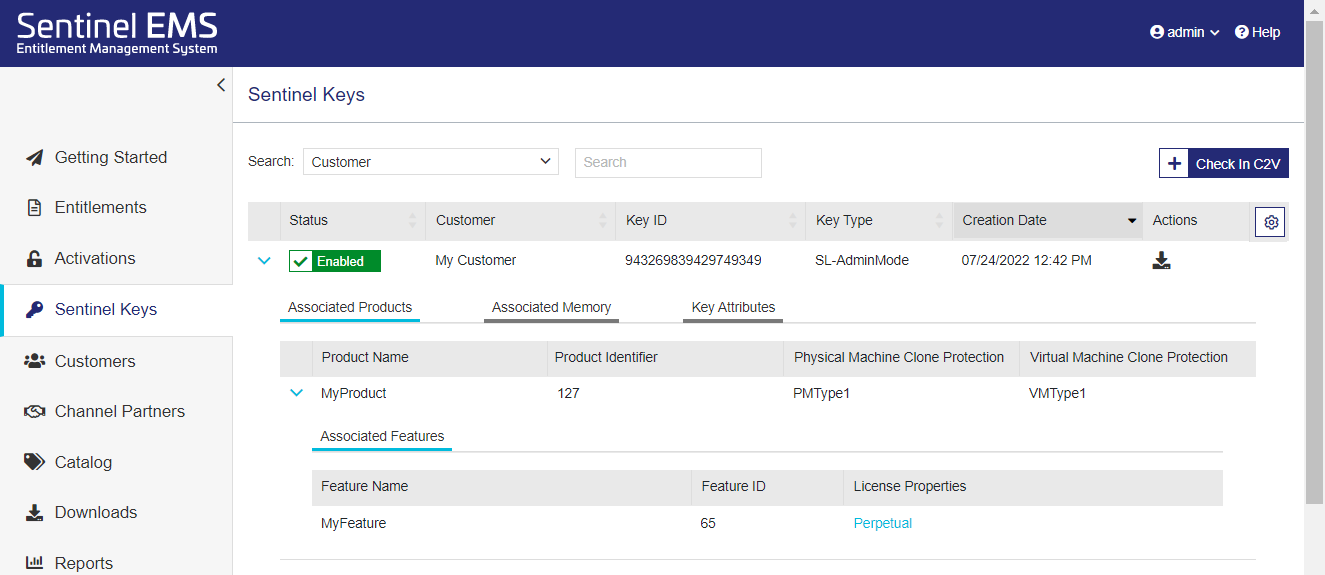
The sections below describe the data that is embedded in a Sentinel key. This data is visible on the Sentinel Keys page. The following image shows an example of Sentinel key data with the Associated Products section expanded.
Associated Products
The following table explains the associated product attributes.
| Attribute | Description |
|---|---|
| Product Name | The name of product included in the entitlement. |
| Product Identifier | The numeric identifier for the product included in the entitlement. |
| Physical Machine Clone Protection |
The clone protection scheme to be used on a physical machine. Default value: Platform Default NOTE If the product was migrated from Sentinel LDK, displays the clone protection scheme defined in Sentinel LDK-EMS prior to the migration. |
| Virtual Machine Clone Protection |
The clone protection scheme to be used on a virtual machine. Default value: Platform Default NOTE If the product was migrated from Sentinel LDK, displays the clone protection scheme defined in Sentinel LDK-EMS prior to the migration. |
Associated Features
The following table explains the associated feature attributes.
| Attribute | Description |
|---|---|
| Feature Name | The name of feature associated with the product. |
| Feature ID | The unique numeric identifier for the feature associated with the product. |
| Custom Info |
The additional information included in the license, evaluated from the license attribute value defined in the entitlement. |
| License Properties |
Enables you to view the properties for the associated license model. NOTE FOR CONCURRENCY If Sentinel HL key support was included in the activation (for example, the Locking Type was set to HL or SL AdminMode or SL UserMode), then the concurrency behavior depends on the Network Term setting in the associated license model: >If the Network Term attribute was set to No, then concurrency is implemented with Per Station and Unlimited in the Sentinel key. This ensures that if multiple applications are using the same, locally installed license on a single machine, all of those applications can access the license. >If the Network Term attribute was set to Yes, then the defined concurrency limits are implemented. |
Associated Memory
The following table explains the associated memory file attributes.
| Attribute | Description |
|---|---|
| File ID | The numeric identifier that your application uses to refer to the selected memory file. |
| File Type | The read-write permissions for the memory file. For details, see Memory. |
|
Memory Data (Text Value) |
The memory data value in text or hexadecimal format. Note:
|
 button to view the expected hexadecimal data. You can then click the Convert to Text
  button
Key Attributes
The following table explains the Sentinel key attributes. The displayed key attributes depend on the type of key.
| Attribute | Description |
|---|---|
| Status | The status of the Sentinel key. For details, see Sentinel Key Status. |
| Customer Name | Name of the customer defined in the entitlement. |
| Customer Identifier | The customer identifier defined in Sentinel EMS. |
| Key ID | The unique, automatically generated, Sentinel key identifier. |
| Key Type |
The locking type, for example, SL-AdminMode or Sentinel-HL-Max. For CL keys, Key Type is set to SL-AdminMode and Hosted Service is set to Yes. |
|
Batch Code |
(Visible only when Viewing C2V Data) The batch code that was defined when creating the product included in the Sentinel key. |
| Virtual Clock |
(Displayed only when available) The date and time when the protected application logged in to the feature. The default time zone is UTC. See also: Reset Virtual Clock |
|
Hosted Service |
Indicates if the Sentinel key is connected to the service-hosted, cloud license manager server, which is hosted by Thales. This requires a subscription to the Sentinel LDK CL Service. When set to Yes, the key is known as a CL key. Possible values: Yes or No |
|
Market Group |
The market group associated with the customer who uses this key. The market group value may be custom-defined, may match your organization's unique batch code, or may match the batch code for Sentinel protection keys with a demo vendor code—DEMOMA. |
| Creation Date |
The date and time that the C2V file was checked in for this Sentinel key or when the product is activated for the first time. The default time zone is UTC. |
| Last Modified Date |
The date and time that an updated C2V file was checked in for this Sentinel key, for example, if the license was updated or when the product is activated for the first time. The default time zone is UTC. |
Actions for Sentinel Keys
The following table lists the actions available for Sentinel keys. Each action is available only for certain conditions, as described below.
| Action | Description | |
|---|---|---|

|
Download V2CP |
Downloads the V2CP file that was generated from the C2V file. Available for: Sentinel keys whose status is Enabled, excluding CL keys (where Hosted Service is set to Yes). |

|
Enable |
Opens a confirmation box in which you re-enable a disabled Sentinel key. > If the operation succeeds, you can download the V2CP file directly from the success message as well as from the grid. >If the operation fails, then follow the instructions in the error message. Available for: Sentinel HL (Driverless configuration) keys whose status is Disabled. |
| Clear 'Cloned' Status |
Opens a confirmation box that lets you clear the cloned status of a Sentinel key. >If the operation succeeds, the Sentinel key status changes to Enabled. You can download the V2CP file directly from the success message as well as from the grid. >If the operation fails, then follow the instructions in the error message. Available for: Sentinel keys whose status is Cloned. |
|
| Reset Virtual Clock |
Opens a confirmation box that lets you reset the virtual clock time on the Sentinel key to the current UTC time. >If the reset operation is successful, you can download the V2CP file directly from the success message as well as from the grid. >If the operation fails, then follow the instructions in the error message. Available for: Sentinel HL (Driverless configuration) and Sentinel SL keys whose status is Virtual Clock Error. |
|

|
Synchronize |
Connects to the service-hosted, cloud license manager server to synchronize a Sentinel key. Available for: CL keys that were generated using Produce and Push. |