Users
|
New to Sentinel EMS?
|
Who Is a User?
A user (formerly contact) is an individual who serves as the single point of communication on behalf of a customer. For example, a user can handle entitlements for a specific customer. This differentiates users from vendor users, who are software vendor employees that are responsible for performing various tasks in the Sentinel EMS vendor portal or using the Sentinel APIs.
You can create users for customers and then generate entitlements for them. All emails related to an entitlement are sent to the specified user. Users may handle entitlements using the Sentinel EMS customer portal, or they may simply receive email notifications about these entitlements.
The Users page displays users from the logged-in vendor user’s market group. If the market group is linked to other market groups, the Users page displays users from those linked market groups as well.
Standard User Versus Administrator User
Most users are defined as standard users. A standard user can work only with the entitlements to which they have access and can perform operations such as license activation for these entitlements. A standard user may or may not be associated with a customer.
If needed, you can create a user with administrative rights for a specific customer. 
A customer's administrator user can access all the entitlements, downloads, and activations of the associated customer, as well as manage
External Account Administrator
An external account administrator is the customer administrator of a customer account in the same market group who is granted administrative access to another customer account. This allows the administrator to manage the target customer account in addition to their own.
The external account administrator can access all entitlements, downloads, and activations of the associated customer, as well as manage user associations, machine accounts, user sessions, tokens and users.
An external account administrator cannot manage Sentinel RMS Cloud LM license sessions, own entitlements for another customer account, or access licenses from another customer using user-based licensing.
You can view the list of the external account administrators having access to a customer by expanding the customer on the Customers page in the vendor portal. For more information, see
Prerequisites for Creating a User
A role that includes Customer Management permissions. At minimum, you need the Add permission. For details, see Roles.
User Status
The Status attribute for a user can be one of the following:
>Enabled: The user can log on to the Sentinel EMS customer portal.
>Disabled: The user is blocked from logging on to Sentinel EMS customer portal.
Creating a User
You create a customer's user from the Users page.
To create a user:
1.From the navigation pane, select Customers > Users to view the Users page.
2.Click the Add User button.
3.Fill in the user attributes.
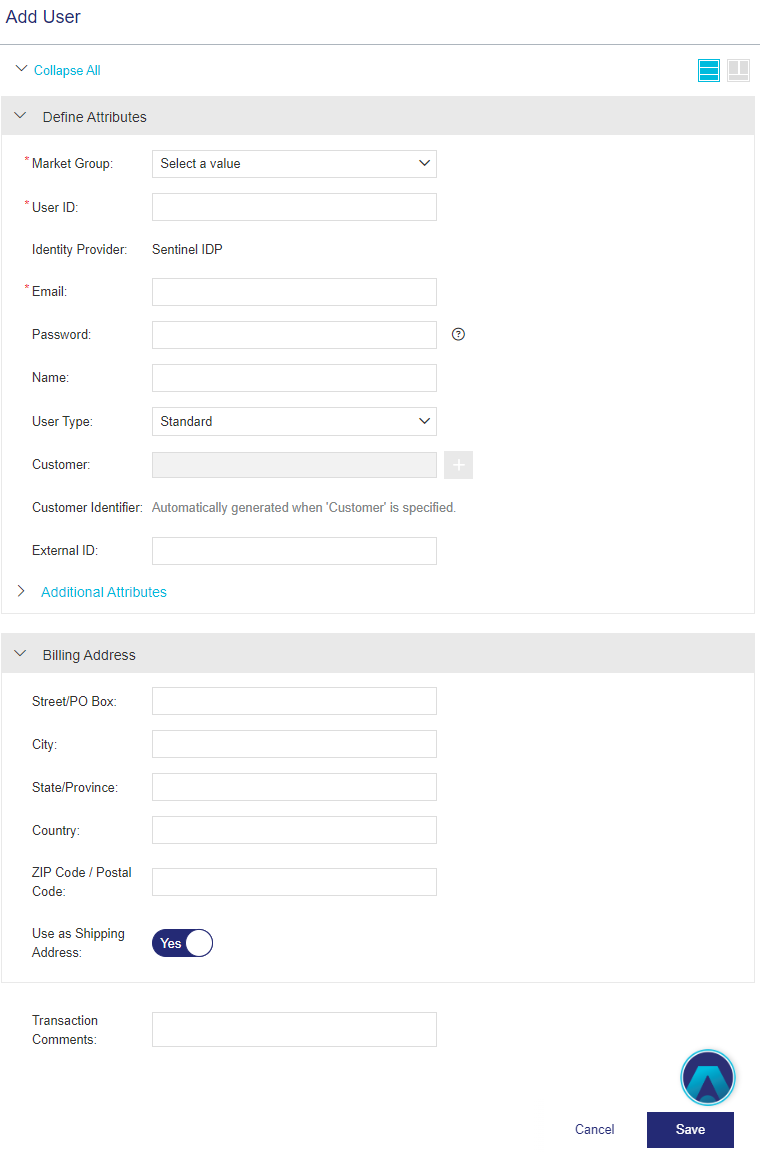
4.Click Save.
User Attributes
The following table explains the attributes that are used to create a user:
| Attribute | Description | Required/Optional | Valid Values |
|---|---|---|---|
| Market Group |
(Displayed only if the logged-in vendor user is associated with more than one market group.) The market group to which the user belongs. The market group specifies a target market for specific catalog elements and their entitlements. A user can work with catalog elements and entitlements only from its own market group. How does Sentinel EMS decide which market groups are available and which market group to assign automatically? Each user can be associated with only one market group. The list of displayed market groups depends on the currently logged-in vendor user. >If the logged-in vendor user belongs to more than one market group, a list is displayed containing those market groups. You can select the relevant option. >If the logged-in vendor user belongs to only one market group, then the system automatically assigns that market group to this user, and this attribute is not displayed on this page. >If the logged-in vendor user is not assigned to a market group, the system displays an error when the vendor user tries to create a user, customer, or entitlement. Contact your system administrator for further assistance. |
Required |
Any market group in the list if a list is displayed. |
| User ID | Unique identifier of the user. | Required |
>3 to >Alphanumeric >Special characters supported: underscore (_) |
|
Name of the identity provider that is used to authenticate the users that access your application or service. If more than one identity provider is available, select the relevant option from the list. Otherwise, Sentinel IDP is used by default and is displayed as read-only. If you select an identity provider other than Sentinel IDP, and User Attribute for Identity Federation is set to External ID, you must also set External ID on this page. |
Required |
Sentinel IDP or your own identity provider. |
|
|
Email address of the user. The email address is used to: >Receive email notifications >Log on to the Sentinel EMS customer portal if the Password is defined |
Required |
>Maximum: 100 characters >A valid email address >Cannot contain: spaces and \ () [] : ; “ <> >Cannot start with a '.' >Cannot contain double .. >Cannot contain double @@ >Must be unique across all vendor users, users, and channel partner users existing in Sentinel EMS. >When using SSO, the email address must match one of the following conditions: •When User Attribute for Identity Federation is set to email, the letter case of the email address must be identical in both Sentinel IDP and your own identity provider. •For Sentinel IDP, your system must be configured to provide the email address in lowercase following user authentication with your identity provider. |
|
| Password |
Password the user uses to log on to the Sentinel EMS customer portal. If you specify an Identity Provider other than Sentinel IDP, this field is automatically disabled. |
Optional |
> 8 to 30 characters >At least one lowercase character (a-z) >At least one uppercase character (A-Z) >At least one number (0-9) OR special character (! @ # $ % ^ & * ( ) _ - + = , .) |
| Enforce Password Change on First Login |
(Displayed when you start entering a password.) Specifies whether the user must change the password after the first successful login to Sentinel EMS. When set to Yes, the user must change the password after the first successful login before accessing Sentinel EMS, ensuring that the initial password is replaced with a secure one. This attribute inherits its default value from the Enforce Password Change on First Login Administration Console property, but you can modify this value. If you clear the password, this attribute is not displayed. NOTE For the Sentinel EMS customer portal, password change at first login is enforced only when logging in using user credentials (user ID or email address and password), and does not apply to login using EID or PKID. |
Optional |
Yes or No |
| Name | Name of the user. | Optional |
>1 to 100 characters >Alphanumeric >Cannot contain: ( ) |
|
Type of user: >Standard: A standard user can work only with the entitlements to which they have access and can perform operations such as license activation for these entitlements.
>Administrator: A customer's administrator user can access all the entitlements, downloads, and activations of the associated customer, as well as manage
|
Required |
Standard OR Administrator |
|
| Customer |
Customer to associate the user with. Start typing and select the customer from the list of suggestions. Customers from linked market groups if any, are also available for association. If the relevant customer is not available in the list, click |
>Required if User Type is Administrator >Optional if User Type is Standard |
>1 to 500 characters >Alphanumeric |
| Customer Identifier |
Unique identifier for the customer. Automatically displayed when you select a customer. |
Required when a customer is defined. |
Read-only value for the selected customer |
| External ID |
External reference identifier that uniquely identifies the user in an external system. |
Required only if: > The user belongs to an Identity Provider other than Sentinel IDP >User Attribute for Identity Federation is set to External ID |
>0 to 60 characters >Alphanumeric >Must be unique across users |
|
Additional Attributes |
|||
| Ref ID 1 |
Reference identifier that identifies the user in an external system. |
Optional |
>0 to 100 characters >Alphanumeric |
| Ref ID 2 |
Reference identifier that identifies the user in an external system. |
Optional |
>0 to 100 characters >Alphanumeric |
| Phone | Telephone number of the user. | Optional |
0 to 100 characters |
| Language |
Display language for the user. Select the preferred language for the user from the available options. If an email template is available in the selected language, automatically generated emails (such as entitlement certificates, license certificates, or revocation requests) are sent in that language. If a template is not available, the email is sent in English. The user’s display language selection does not affect the language of the Sentinel EMS Portal interface. |
Required | The options displayed depend on the language packs installed for Sentinel EMS. |
| Company Website | URL of the company website | Optional | A valid URL |
|
Billing and Shipping Address Attributes Billing Address |
|||
| Street/PO Box | Street address or the post office box details of the user for billing statements (for example credit card statements). | Optional | 0 to 100 characters |
| City | City of the user. | Optional | 0 to 30 characters |
| State/Province | State, province, county, territory, or other any other regional information required for this address. | Optional | 0 to 30 characters |
| Country | Country of the user. | Optional | 0 to 30 characters |
| ZIP Code / Postal Code | ZIP or postal code of the user. | Optional | 0 to 20 characters |
| Use as Shipping Address |
>Select Yes to use the same address for both billing and order shipment. > Select No to expand the pane and specify a different Shipping Address for receiving orders. |
Yes OR No |
|
 Add Customer. For more details, see
 Actions for a User
The following table lists the actions available for users:
| Action | Description | |
|---|---|---|

|
Edit |
Updates information for an existing user. Note: >It is mandatory to update the password whenever you update the user email address to enable the user to log on to the customer portal. >When you update the user email address, it is recommended to delete the existing user and create a new one with the required email address to avoid any errors. Before deleting the user, you must disassociate it from all entitlements and activations. >You cannot update the User ID for a user. >If you want to switch a user to an identity provider other than Sentinel IDP, first remove the user password associated with the Sentinel IDP to avoid authentication issues. |
| Move Market Group |
(Only available for users not linked to a customer.) Moves the user to another market group. This action opens the Move Market Group dialog box. >When moving to a Generic Market Group: The user and all of their associated entitlements and activations are transferred to the new market group. >When moving to a Linked Market Group: Only the user is transferred. Entitlements and activations remain in the original market group. NOTE If only one market group is configured in the system, this action displays an informational message and the user cannot be moved. |
|
| Remove Password |
Deletes an existing user's password, allowing you to create a vendor user or channel partner user with the same user ID and email address. Removing the existing password disables password-based authentication for this user. |
|

|
Disable | Prevents the user from logging on to Sentinel EMS. |

|
Enable | Re-enables a user that is marked as disabled, enabling the user to access Sentinel EMS. |

|
Delete |
Deletes a user. You can delete a user for whom no entitlements |
Registered Machines
NOTE The Registered Machines tab is available for users only in conjunction with User-Based Licensing.
Machines may be registered automatically when an end user opens a protected application. You and the customers' administrator users can view the list of registered machines for each end user. If the limit for Maximum Registered Machines is set to Unlimited, no machines are registered. For details, see Service-Hosted Cloud Licensing Permissions.
To view the list of registered machines:
On the Users page, expand the user for which you want to view the registered machines. Select the Registered Machines tab to view the list of machines registered with the user. The following information is available for each registered machine.
| Attribute | Description | ||
|---|---|---|---|
| Status |
The status of the registered machine. |
||
| Enabled | The end user can use the machine to access protected applications | ||
| Disabled | The end user cannot use the machine the access protected applications. This can occur only if the vendor or the customer's administrator user disables the machine. | ||
| Machine Name | The name of the device as defined in the system settings. | ||
| IP Address |
The IP address of the client machine. |
||
| Registration Date | The date that the machine was registered, which is usually the date that the end user logged in to the protected application for the first time. | ||
| Actions | The actions that you can perform for this registered machine. (On the customer portal, a customer's administrator user can perform these actions only for the |
||
|
Opens a confirmation box that enables you to change the status of an enabled machine to Disabled. This prevents the end user from accessing protected applications on the registered machine. |
||
|
Opens a confirmation box that enables you to change the status of a disabled machine to Enabled. |
||
|
Opens a confirmation box that enables you to permanently remove the machine from the service-hosted, cloud license manager server. To enforce the Maximum Number of Registered Machines, Thales recommends that you disable a registered machine instead of deleting it. |
||
|
Connects to the service-hosted, cloud license manager server to synchronize the Displayed only when the most recent change to the If synchronization fails, then contact Thales Customer Support for assistance. |
||