
 Custom Clone Protection Schemes
|
>What Is a Custom Clone Protection Scheme? >Prerequisites for Creating a Custom Clone Protection Scheme >Creating a Custom Clone Protection Scheme |
New to Sentinel EMS?
|
What Is a Custom Clone Protection Scheme?
A clone protection scheme prevents unauthorized application usage by protecting against the cloning of physical or virtual machines. Cloning involves creating an image of one device (including your software and its legitimate license) and copying this image to other devices. Sentinel LDK detects cloning by comparing machine fingerprints and disables protected software that is locked to Sentinel SL keys when the fingerprint no longer matches. Clone detection is effective whether the protected software is installed on a physical device or on a virtual machine.
Sentinel EMS provides two types of clone protection schemes—Platform Default and Custom Clone Protection Scheme. The Platform Default scheme automatically applies the best clone protection scheme for the environment on which a protected application runs. However, software vendors with customized devices that use proprietary fingerprints and expect locking to include one or more of these proprietary fingerprints cannot use the Platform Default clone protection scheme. To address this, a custom clone protection scheme can be used that allows locking applications to vendor-defined criteria. When deploying on VMware ESXi servers, a custom clone protection scheme can be used to lock applications to Fully Qualified Domain Names (FQDN) instead of the Platform Default scheme for greater flexibility.
Prerequisites for Creating a Custom Clone Protection Scheme
A role that includes Catalog (Namespace) permissions for the relevant namespace.
Creating a Custom Clone Protection Scheme
You can create custom clone protection schemes for use with one or more products in a namespace. After a custom clone protection scheme is created, you can associate it with a product.
To create a custom clone protection scheme:
1.From the navigation pane, select Catalog > Custom Clone Protection to view the Custom Clone Protection Schemes page.
2.Click the Add Custom Clone Protection button.
3.Fill in the custom clone protection scheme attributes.
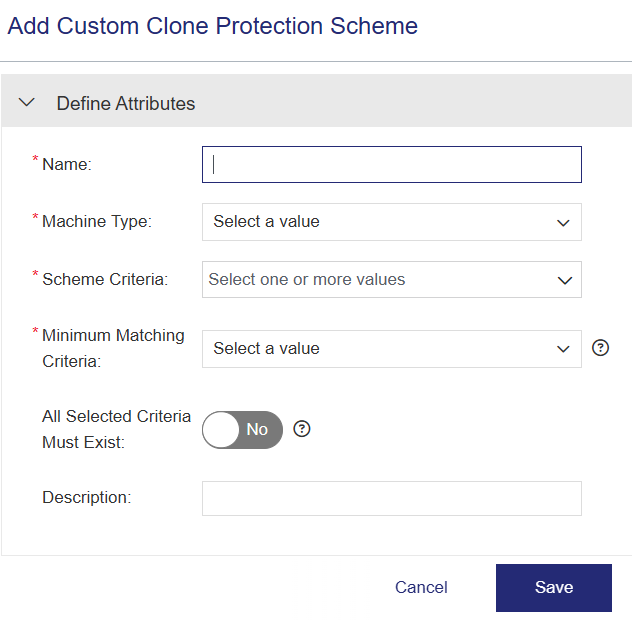
4.Click Save. The Add Custom Clone Protection Scheme page closes, and the custom clone protection scheme is added to the list on the Custom Clone Protection Schemes page.
Custom Clone Protection Scheme Attributes
The table below describes the attributes related to custom clone protection schemes.
Actions for Custom Clone Protection Schemes
| Action | Description | |
|---|---|---|

|
Edit |
Updates information for an existing custom clone protection scheme. |

|
Delete |
Deletes the custom clone protection scheme. (Available only for non-deployed schemes.) |